Choose a reference
Use a clear image with the subject, framing, or composition you want to preserve. A well-lit source gives the transformation more useful visual information.
Browser image editing
Image to image ai online helps you guide a new visual with an existing image and a clear instruction. Upload a reference, describe the change, and review the result in one focused flow.
Related guides
A strong reference and a specific instruction make the browser workflow easier to control. These related guides cover nearby ways to use the same idea.
See how to explore image transformation without adding cost to the first experiment.
Learn which prompt details help preserve believable lighting, materials, and proportions.
Browse practical starting points for portraits, products, interiors, and creative variations.
The basic flow
The process is easiest to understand as a short sequence: establish the visual source, state the intended change, then judge the output against the reference.
Use a clear image with the subject, framing, or composition you want to preserve. A well-lit source gives the transformation more useful visual information.
Name the new style, setting, materials, colors, or mood. Say what should remain recognizable as well as what should be different.
Compare the result with your reference. If the subject drifts, simplify the instruction and reinforce the key feature in the next pass.
Workflow choices
Different inputs serve different goals. Use the side-by-side view to decide how much of the original image should guide the result.
Reference-led edit
An existing image supplies the main structure
Prompt-led variation
A concept or rough direction supplies the main structure
Reference-led edit
Keeping a subject, pose, layout, or silhouette
Prompt-led variation
Exploring several visual interpretations
Reference-led edit
Describe the desired change around the reference
Prompt-led variation
Describe the scene, subject, and visual treatment
Reference-led edit
The result may cling too closely to unwanted details
Prompt-led variation
The result may wander from the intended composition
Reference-led edit
Remove distractions or clarify what must stay
Prompt-led variation
Add composition, identity, and material details
Reference-led edit
You already like the image's underlying arrangement
Prompt-led variation
You want a broader concept search from a written idea
Practical scenarios
Most weak results are not caused by using an online tool alone. They usually come from an unclear source, a conflicting instruction, or expectations that exceed the reference.
A plain product photo needs several settings for a campaign concept.
Keep the object recognizable while testing backgrounds, lighting, and presentation styles.
image to image examples onlineA rough sketch needs to become a more finished visual direction.
Preserve the gesture and layout while exploring color, texture, and medium.
realistic image transformationA reference pose should be explored in a different visual language.
Use the source for structure, then specify the costume, setting, and desired style.
image to anime aiThe first output changes too many parts of the original image.
Start with one clear adjustment, inspect what moved, and refine the instruction instead of adding unrelated detail.
image to image tutorial for beginnersVisual example
The reference establishes the visual anchor; the instruction then redirects its setting, finish, or mood without requiring a completely new concept.
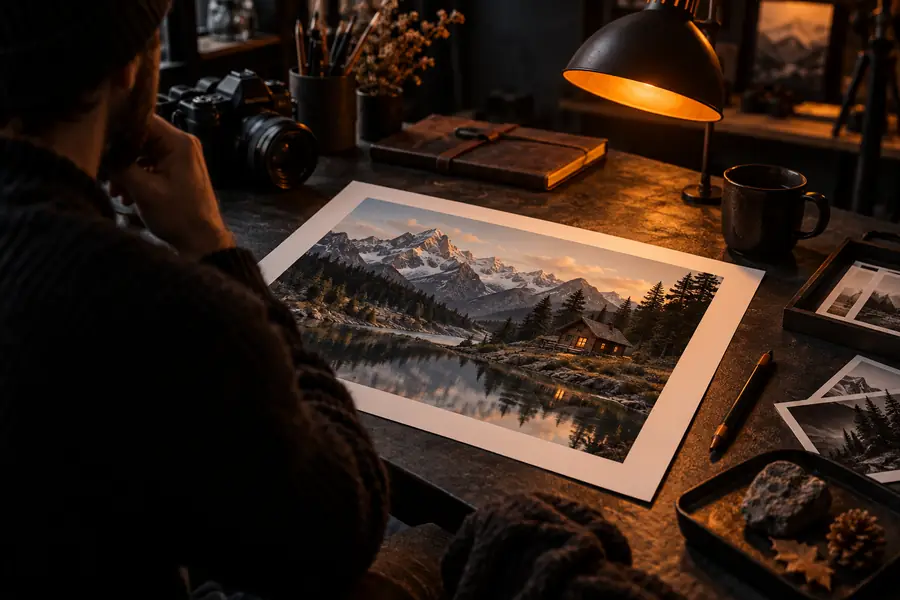
A focused prompt usually makes the difference easier to evaluate.
What you provide
A reliable run has a small amount of information doing clear work: the source establishes context, the instruction defines the change, and the result gives you something to assess.
Ready to try
Use the browser workflow for quick visual exploration: start with an image you understand, name the change you want, and refine from what the result actually shows.
Common questions
It is a browser-based workflow that uses an existing image as visual guidance for a new result. You typically provide a reference, describe the intended change, and review the generated variation.
Yes. An online tool runs through a web interface rather than a local desktop setup. That makes it useful for quick tests when you want to work from a browser.
A clear image with a recognizable subject and useful composition is a good starting point. Avoid unnecessary clutter when possible, and explain which elements should stay unchanged.
The reference or instruction may not make the important features clear enough. Reinforce the subject's identity, pose, shape, or composition, and ask for one smaller change instead of several unrelated edits.
Mention the subject, the change, and the visual qualities you want, such as lighting, setting, material, or mood. It also helps to state what the result should preserve from the original image.