1
Detail
Reference image
Fine texture, gradients, and small surface marks
Pixel-art result
Grouped shapes with only the most readable details
Pixel art workflow
Image to pixel art conversion reshapes a photo, drawing, or character reference into a deliberate low-resolution style. Start with a focused prompt, then refine the grid, palette, and silhouette.
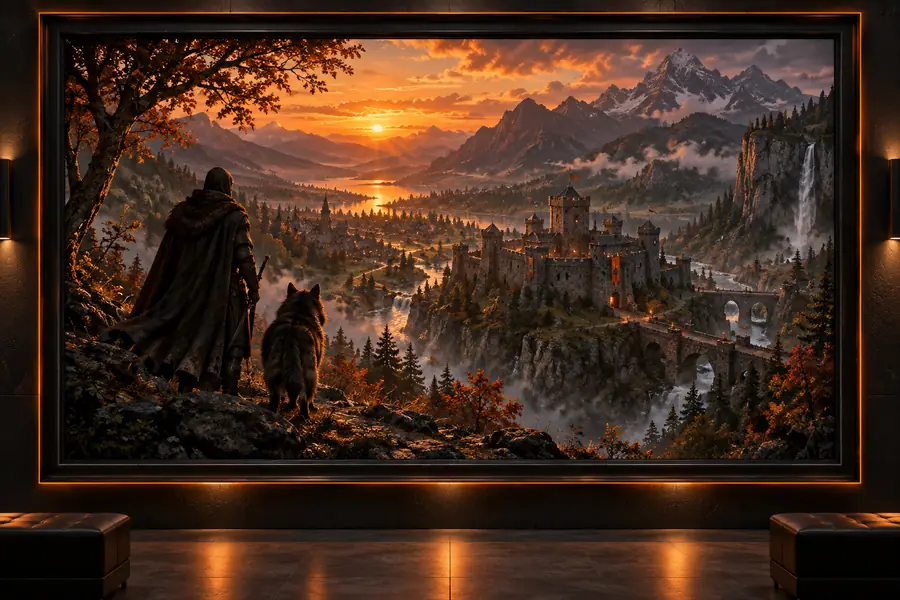
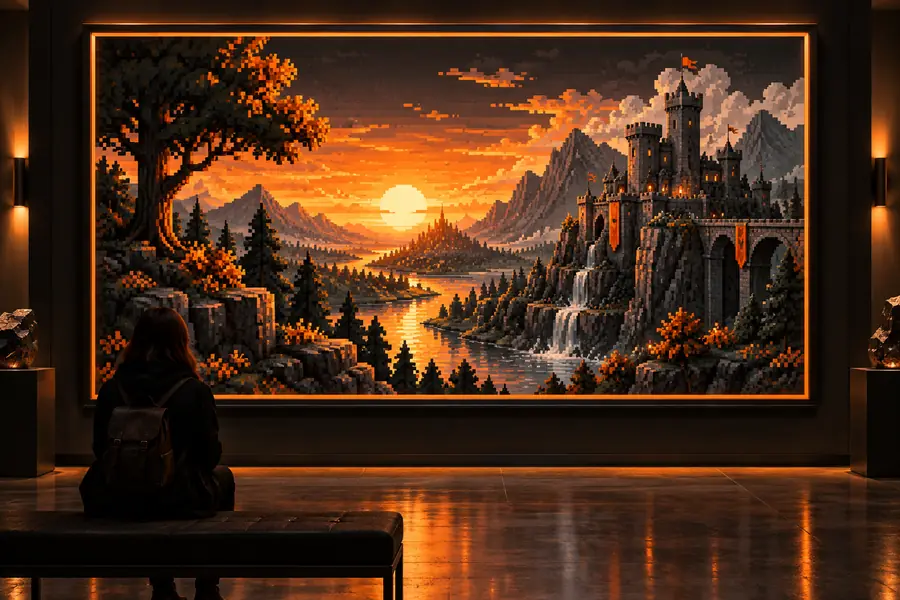
The strongest conversion keeps the subject recognizable while replacing soft detail with readable blocks, hard edges, and a controlled palette.
Drag the divider to compare silhouette, color grouping, and edge treatment.
A useful image conversion is not a smaller copy. It is a visual translation that protects the subject while simplifying information the final grid cannot carry.
Reference image
Fine texture, gradients, and small surface marks
Pixel-art result
Grouped shapes with only the most readable details
Reference image
Soft, antialiased, or photographic boundaries
Pixel-art result
Crisp stepped edges aligned to the pixel grid
Reference image
Many related tones and subtle transitions
Pixel-art result
A compact palette with intentional contrast
Reference image
Continuous shading and atmospheric cues
Pixel-art result
Layered value blocks and selective highlights
Reference image
Natural proportions and irregular contours
Pixel-art result
Exaggerated shapes that read at a distance
Reference image
Context, noise, and incidental objects
Pixel-art result
Simplified space that supports the main subject
Reference image
Material detail can dominate the image
Pixel-art result
Texture becomes pattern, clusters, or is removed
Reference image
Photo, illustration, or source reference
Pixel-art result
Sprite, icon, tile, portrait, or game asset
The same image conversion can support very different outcomes. Describe the intended use so the result favors readability over unnecessary detail.
Use a character sheet or concept sketch as the visual anchor for a small playable sprite.
For animated references, pair the workflow with image to anime ai to explore a consistent character direction before reducing it to a game-ready grid.
image to anime aiPrepare a still scene, creature, or prop as the starting frame for a stylized sequence.
When the asset needs movement instead of a single frame, image to video ai offers a more suitable next step for testing motion.
image to video aiTurn a rough sketch or moodboard image into several compact visual directions.
An ai image generator from image workflow can preserve the source composition while testing alternate subjects, palettes, and moods.
ai image generator from imageConvert a product reference into a small icon with a clean silhouette and restrained colors.
Keep the prompt focused on one object, a square canvas, and a limited palette so the icon remains legible when reduced.
image to anime aiThese are useful starting points for common pixel-art formats, not rigid limits. Adjust them when the subject needs more room for anatomy or environment.
Use the source width as a planning control. The estimates suggest a smaller working grid and a restrained color count before you inspect the actual result.
Specific language helps the tool decide what to simplify, what to preserve, and how the final pixel clusters should behave.
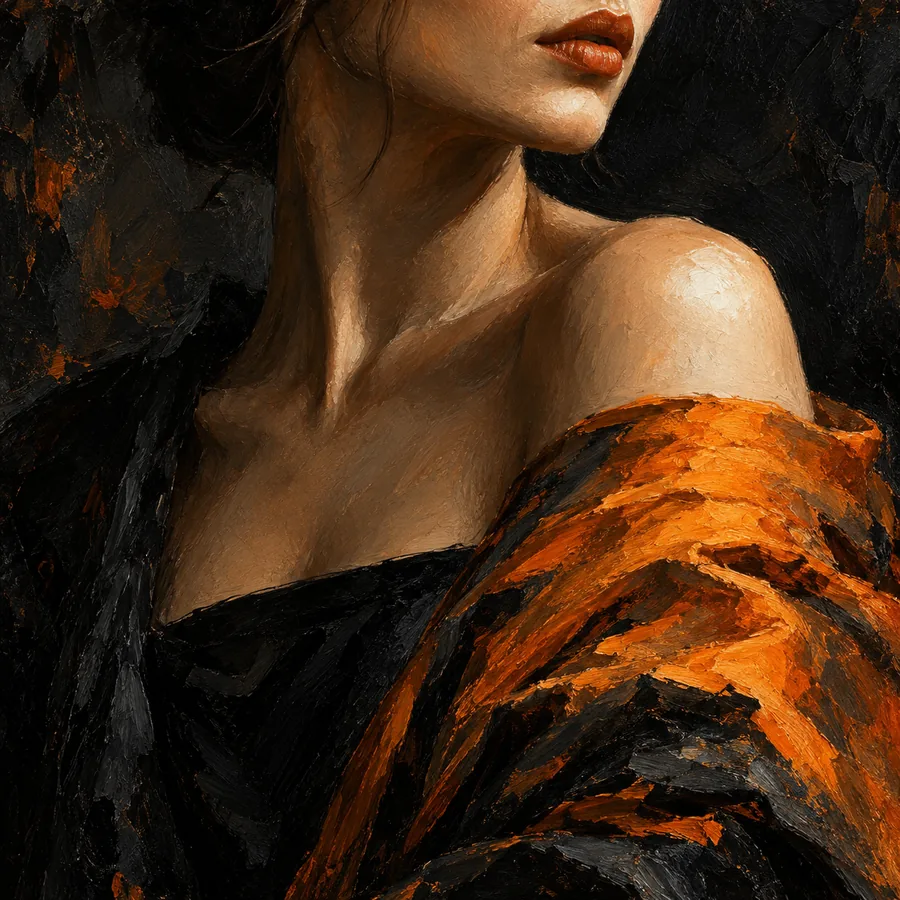 Character
1
Character
1
Turn this reference into a 32x32 pixel art game sprite, limited palette, crisp edges, transparent background
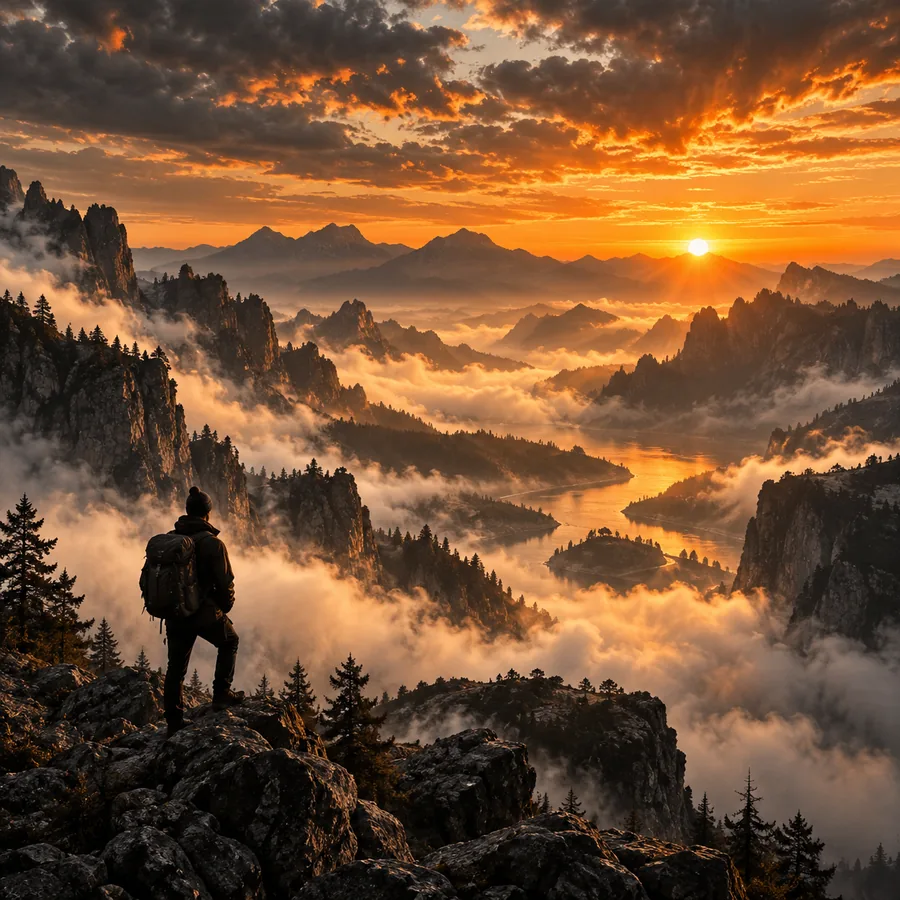
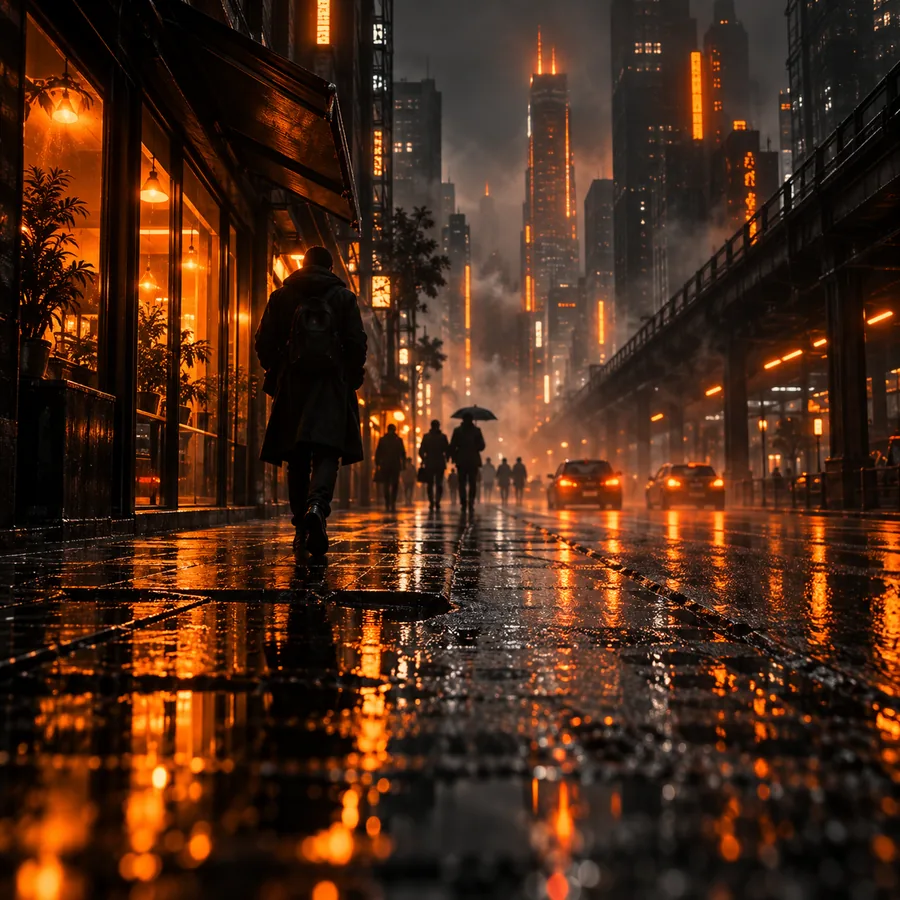 Scene
2
Scene
2
Convert this scene into pixel art, readable silhouette, tiled ground, hard-edged shadows, warm dusk palette
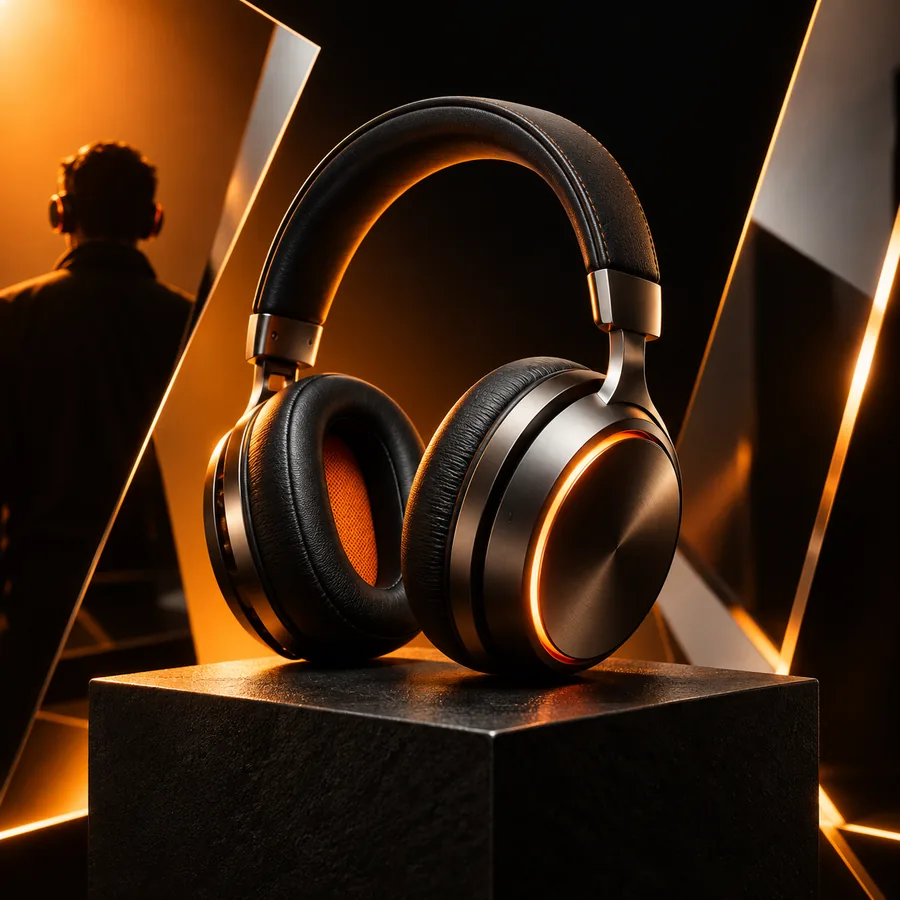 Icon
3
Icon
3
Make a pixel art inventory icon from this object, centered composition, bold outline, four-value palette, no text
 Portrait
4
Portrait
4
Reduce this portrait to pixel art with clear facial features, grouped hair shapes, selective highlights, and a dark outline
Swap the subject, grid size, palette mood, and background instruction while keeping the structural words.
Pixel art developed through technical limits, then became a deliberate visual language used far beyond early hardware.
Early games and computer displays use small grids and restricted colors, making shape and contrast essential.
Character and object art gains recognizable silhouettes, repeated tiles, and carefully placed clusters of pixels.
Hardware expands the palette, but artists continue simplifying forms so sprites remain readable during play.
Indie games and digital artists revive low-resolution aesthetics as an intentional look rather than a technical compromise.
Image conversion tools can translate references into a pixel-art direction, leaving artists to edit clusters, palettes, and animation.
Bring a clear source image and describe the destination: grid size, palette, silhouette, background, and intended use. The tool can handle the first translation while you judge whether the result reads at its final size.
Most clear photos, drawings, objects, and character references can provide a useful starting point. Images with one strong subject and good contrast usually translate more cleanly than busy scenes.
Ask for a specific grid size, crisp hard edges, clustered pixels, a limited palette, and no smoothing or antialiasing. Checking the result at its final display size also helps reveal whether the shapes read correctly.
Not all of them. Fine texture, subtle gradients, and incidental background elements are commonly simplified, while the main silhouette, pose, and large color relationships can remain recognizable.
State the intended size, such as 16x16 or 32x32, then name the subject, palette mood, outline treatment, background, and whether transparency is needed. A focused prompt gives the tool fewer competing decisions.
Yes, it can be a useful starting point for sprites, inventory icons, portraits, props, and tiles. Check licensing and edit the generated result so it matches your project’s technical and artistic requirements.